
This post assumes you have an HP network-capable printer connected to a router with a LAN cable. Instructions for wireless connections and different types of printers may vary, but the overall approach should apply to most home networks.
Some time ago, I did a post entitled “HP Network Printer Going Offline,” in which I provided instructions on how to locate the printer’s IP (Internet Protocol) address and reset it in Windows. Unfortunately, if the printer has a dynamic IP address – an address that is assigned to it by the local server automatically, its address can change later, sending the printer offline once again. You then have to repeat the steps to have the printer setup use the right IP address.
A better way to proceed is to assign a static IP address to your network printer. The static IP address remains fixed, unchanged when the network server is restarted, so the printer remains online.
Identify Your Printer’s Network Settings
Before assigning a static IP address to your printer, first make sure the printer is online, as I explain in “HP Network Printer Going Offline.” This ensures that you are assigning an IP address that actually works.
To identify which IP address is currently assigned to the printer, do the following:
- On your HP printer, press the Setup button to display setup options for the printer.
- Press the right arrow button until Network Setup appears in the LED window, and then press the OK button.
- Press the right arrow button again until the Print Network Settings option is displayed, and then press the OK button. This prints the network settings, which include the IP address, Subnet mask, and Default Gateway (the address of your network’s router).
Setting a Static IP Address
Once you know your printer’s IP address, entering it is pretty easy. Here’s what you do:
- Run your Web browser.
- In the Web browser’s address bar, type the IP address of your printer and press Enter. Assuming you entered the right address, the HP printer control panel should appear.
- Click the Networking tab.
- Under Connections, click Wired.
- Under IP Address Configuration, click Manual IP.
- Enter the IP address, subnet mask, and default gateway in the appropriate boxes.
- Click Apply.
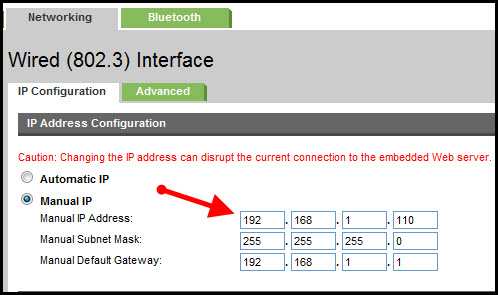
You may need to restart the networked computers, so they can reconnect with the printer.
One HP support person had me set a static address to keep the printer from going offline. Yesterday, another HP support person had me change it back to automatic because I couldn’t print again even though the printer status was Ready. I could find the printer in IE but I couldn’t print. This morning the printer was offline again and I had to change to port and restart windows to print. Any new info about a permanent fix?
I have a Linksys router with a netgear switch with 3 differant printers HP 4250 ,HP 6310 and a zebra label printer I need each printer to have a static IP How can I do this ?
Thanks
Scott
Scott – it is different for each printer. Look at the printer’s menu (or the printer’s control software if you have it, or the printer’s browser based interface, if it has one)
I recommend setting the printer IP addresses high up in the range e.g. 192.168.1.200,192.168.1.201, and 192.168.1.202. Check your own IP address first. It may start 192.168.0 in which case you should use 192.168.0.200 etc. You can find your IP address using the command IPCONFIG at a cmd prompt – look for the line IPv4Address .
RE: HP Laser Jet P2035n
I can access my printer through my Web browser. However, when I click on the networking tab (or any other) it requires a password. The network summary indicates that a password is configured. A cold reset of the printer did not clear this issue. How can you access the tab if you don’t know the password? How can you change the tab if the old unknown password is required? I tried the router password, admin, user, and everything else I could think of. Any other suggestions?
So, EH, you tried this?
To restore the product to the factory-default settings, follow these steps:
1. Turn the product off.
2. Turn the product on, and while it is initializing press and hold both control-panel buttons at the same
time until all the lights blink in unison.
Also, try:
1. Turn off the printer.
2. Press and hold the Job Cancel button.
3. Turn on the printer while holding down the Job Cancel button.
4. Continue to hold down the Job Cancel button for 10-15 seconds, no longer than that.
5. Release the Job Cancel button.
RE: HP Laser Jet P2035n
Tried both possible solutions. Cannot clear the configured password.
The instructions on assigning a HP network printer a fixed IP address look great. Just can’t get in to follow the instructions.
Have been searching the internet for HP printer passwords but can’t make any headway. Don’t know what else to try.
I have a new printer, which has no screen display, and i want to assign a static ip address to it. The printer’s never had an ip address, as opposed to the scenario presented from above, so how do i go about this?
Jay–I dunno. What’s the printer make and model? You might check the printer manufacturer’s website.
If display is not available on printer then how to assign static IP address.
have a hp laser jet 4250 with ip, but cannot access the printer with this ip, how could i access this printer and even change it ip
ave a hp laser jet 4250 with ip, but cannot access the printer with this ip, how could i access this printer and even change it ip
So how do you change the IP if it’s set to “manual” and the IP is set to 0.0.0.0??
Jim: I assume you’d have to change the settings either on the printer itself or by typing in the IP in your browser although I’m not sure if you even access 0.0.0.0 from a PC.
You may have to reset the device to original settings, check all connections and ports, then see the steps in the printer manual (which you can also find online) for setting a static IP.
How to assing Static IP address on Samsung Network printer,
Please let me kmow the exact procudure.
Thanks
How to assing Static IP address on Samsung network printers.
Please let me know procudure.
Thanks
My HP printer says it’s connected to the AT&T router and all diagnostics pass. The configuration page states the IP address is 10.0.0.10 I cannot ping this address in order to even try to change it to a static address. Directions please.
by defalt ip address p2035n
hey, can somebody help me how to find the IPaddress of HP F4235?
I have a network printer model no:4250/4350 and I have abailable IP Address 192.168.0.5 to 20.How to assing Static IP address on HP network printers.
Please let me know procudure step by step.
This is quite easy to set an static ip.
If u have a router, you only need a ethernet calbe and plug it in the router and the printer. When this is dont go check witch brand and model printer you got when you have done that. Go and look on google the model and brand type behind it: Network configuration. Then you will get some manuals. This will show you how to print a configuration page out of your printer. On that they will show you your printers ip adress. Then go to your pc and type in the ip. like this: 192.168.0.1 ( this is just a example ). this may require a password to acces your printer. You can google it and check out what the standard password is for your printer. Then when you have entered the printer online by pc. Go to network pages and change your ip from automatic to static. Then type in the ip you want it to have. If you need any help just post back and ill check it out.
Peace
I have a HP Laserjet M401n. I can access the printer through the web browser when it is assigned an IP Address through DHCP. When I set a static IP address I can no longer access or ping the printer. The IP Address, Subnet and default gateway are correct. I have reset to factory defaults and tried to set static address many times. Please Help!
I have a laserjet M451dn that has a static IP already assigned. I need to move it to a new IP. The web interface will not come up at all. I tried at the printer itself to do a cold reset to get back to factory defaults, but it just gives me an access denied. never asks for a user name and/or pw, just immediately access denied!
Is there any way around this, as the printer must be moved to a new IP.
Thanks,
Lisa
I followed these directions for my HP Officejet 7210 after dealing with needing to reset Windows 7 to an automatically assigned IP address every few days. These directions were very straight forward and easy to follow. I hope this does the trick so that I can get this item off of my “Honey Do” list for good.
I have HP pro 400 printer. I want to put IP address for making network printer, but LCD touch is not working. Anyone told me default IP address or how we check its default IP address.
Hi there! I am having the same issue as one or two of you above. I have printed out the Config page but now, I cannot figure out the password to get into the Network tap in order to change the IP address 🙁 Can someone help me out?
BTW HP OfficeJet 6500 E709n Series
much appreciated!! =^,^=
I have TWO HP G72 laptops and an HP Photodumb D7460… I’ve tried everything mentioned here, nothing works. The computer always sees the printer as OFFLINE. regardless if it’s wireless or connected directly through USB. I must remove the device, reinstall, then it works. It seems to be a problem only when the laptops are rebooted. I’ve narrowed it down to this conclusion: HP SUCKS! their products and software are Garbage!! I will never purchase another HP device! If I’m given an HP device, I will smash it against a brick WALL!
just wanna say thank, it did work for me
Hp Printer Offline Error
I needed to print my thesis after finishing my practical work in the
college.
And the printer won’t just ge to work and keeps on displaying HP printer offline error
again and again no matter how many times i give the command print or even try to restart the computer.
If you have been a masters or doctorate student you will know how deadlines work
and how your guide will rebuke you over not finishing your work and thesis submission on time.
So I have been working on my doctorate project and my whole research
of five years combined in one thesis book that will show the efforts, sweat and sleepless nights I’ve put in my
project. After finishing my online submission of thesis I need to
make a hard copy, actually five hard copies for all
the professors i will be facing and defending my PHD work in front of them.
And doing this was only made possible by the help of hardworking people at gadgetsick.com who guided me through the whole process of getting my laptop to
work.
Whole day I was wondering how am I going to get this all done if only this printer will get
to work, if only it can stop displaying this HP printer offline error.I’ve always been the studios too
much into books kind of a person,not knowing anything about
printers or fixing them. That is when I got the much needed help from the staff from gadgetsick.com
who are genuinely trying to help people stuck in the
same situation as I was.They deserve a heartfelt thank you
for making it possible for me to finish my work on time.
In a stressful situation of defending my whole work
of 5 years, I got the help I needed.